How to export a WhatsApp chat to PDF
WA Suite: Chat Export & Backup turns a chat you export from WhatsApp Web into a PDF with one block per message, "Page n of m" on every page, and long chats split into volumes of up to 10,000 messages. Save as PDF is part of All tools. The free plan exports TXT, JSON, CSV, and HTML, and its HTML file can be printed to PDF from the browser as a free workaround.
Can you export a WhatsApp chat to PDF?
Yes, in two steps. First export the chat from WhatsApp Web with the extension: it saves the formats you tick (TXT, JSON, CSV, or an offline HTML page), and adds the export to the extension's library. Then, on All tools, save that library entry as a PDF. The PC guide covers the export itself.
How to save a chat as PDF from the library
- Export the chat from WhatsApp Web. The export is added to the library as its own entry.
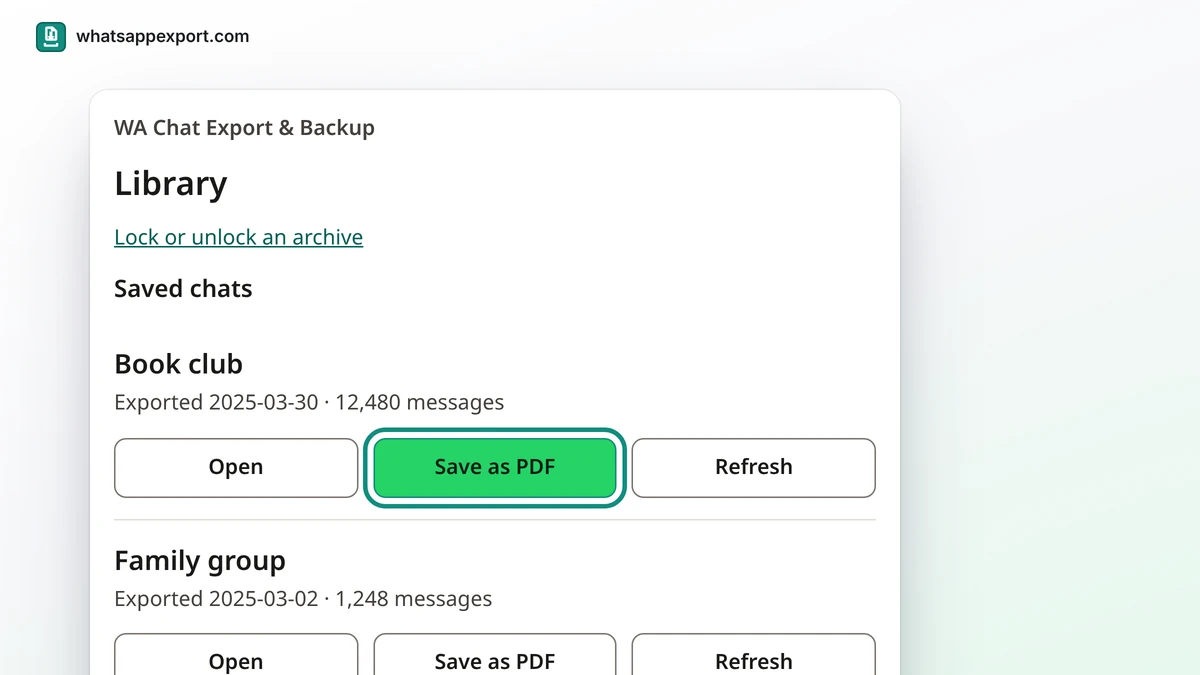
- Click the extension and choose the Library tab of its popup (version 4.1.0 or later).
- Choose Save as PDF on the chat. On the free plan the button reads Save as PDF with All tools.
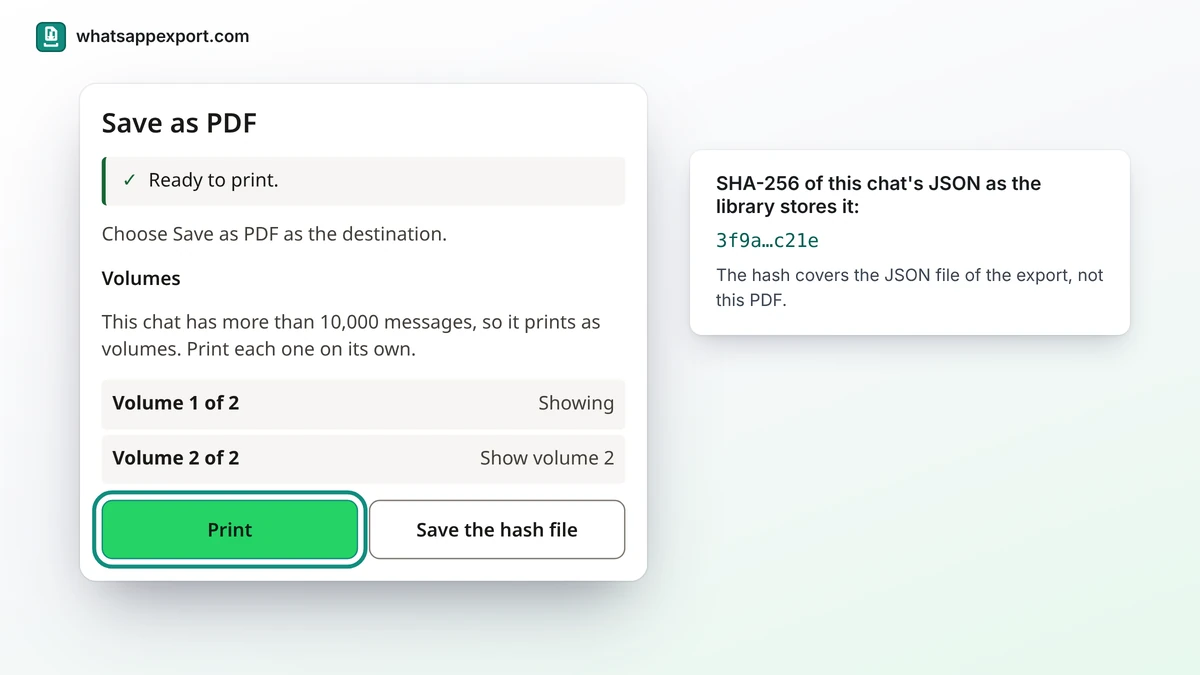
- When the page says it is ready to print, press Print and choose Save as PDF as the destination.
- Save the file where you want it.
Save as PDF is in All tools: Add to Chrome, Add to Edge, or Add to Firefox.
What the PDF shows
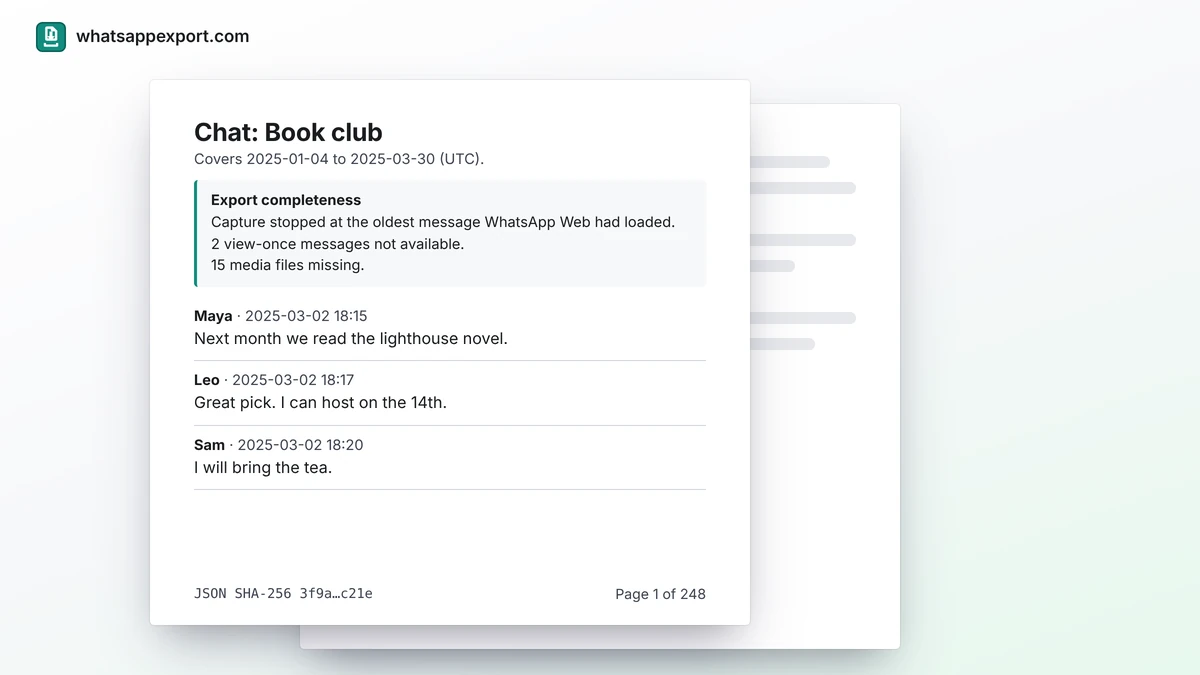
- One block per message with the time, sender, text, quoted replies, reactions, and captions.
- Thumbnails of saved images. A saved file with no preview names its path instead.
- The completeness report on page 1: the dates covered, where the export stopped, and counts of what was not available.
- "Page n of m" on every page.
Right-to-left text and color emoji print correctly.
How long chats are split into volumes
A chat with more than 10,000 messages prints as volumes of up to 10,000 messages each, and each volume names its date range. Print each volume on its own: the page shows one volume at a time, and you pick the next one from the list of volumes.
Checking the export files haven't changed (SHA-256)
Every page of the PDF prints the SHA-256 hash of the chat's JSON file, as the library stores it. The hash covers the export's JSON file, not the PDF itself. The print page can also save a .sha256 file that lists that hash and the hash of every saved media file, so you can check the export folder with sha256sum -c.
PDF in Firefox
In Firefox, choose Save to PDF as the destination. Firefox may print its own default footer if its direct PDF save isn't available.
Free workaround: print the HTML export
This is a free workaround, not the All tools PDF. On any plan, you can open the offline HTML file from an export and use the browser's own Print command to save it as a PDF. The quality is lower than the All tools PDF:
- No volumes: a long chat prints as one long document.
- No SHA-256 pages: the hash is not printed on the pages, and no
.sha256file is saved. - No "Page n of m" from the extension. Any page numbers come from the browser's own print settings.
- No media on the free plan, so no images.
To do it:
- Export the chat and open its
.htmlfile in Chrome, Edge, or Firefox. - Choose Print from the browser's menu, or press Ctrl+P.
- Choose Save as PDF as the destination (Save to PDF in Firefox), then save.
The search and jump-to-date controls are left out of the printout. Read more about the page in the HTML guide.
Common questions
Is Save as PDF free?
No. Save as PDF is part of All tools, $8.99 a month, $49.99 a year, or $74.99 lifetime. See pricing. On the free plan, printing the HTML export from the browser is a lower-quality workaround.
Does the PDF include photos?
It shows thumbnails of the images an export saved. Saving media is part of All tools; the media guide explains what can be saved.
Do right-to-left text and emoji print correctly?
Yes. Right-to-left text and color emoji print correctly in the All tools PDF.