How to export a WhatsApp chat to an offline HTML page
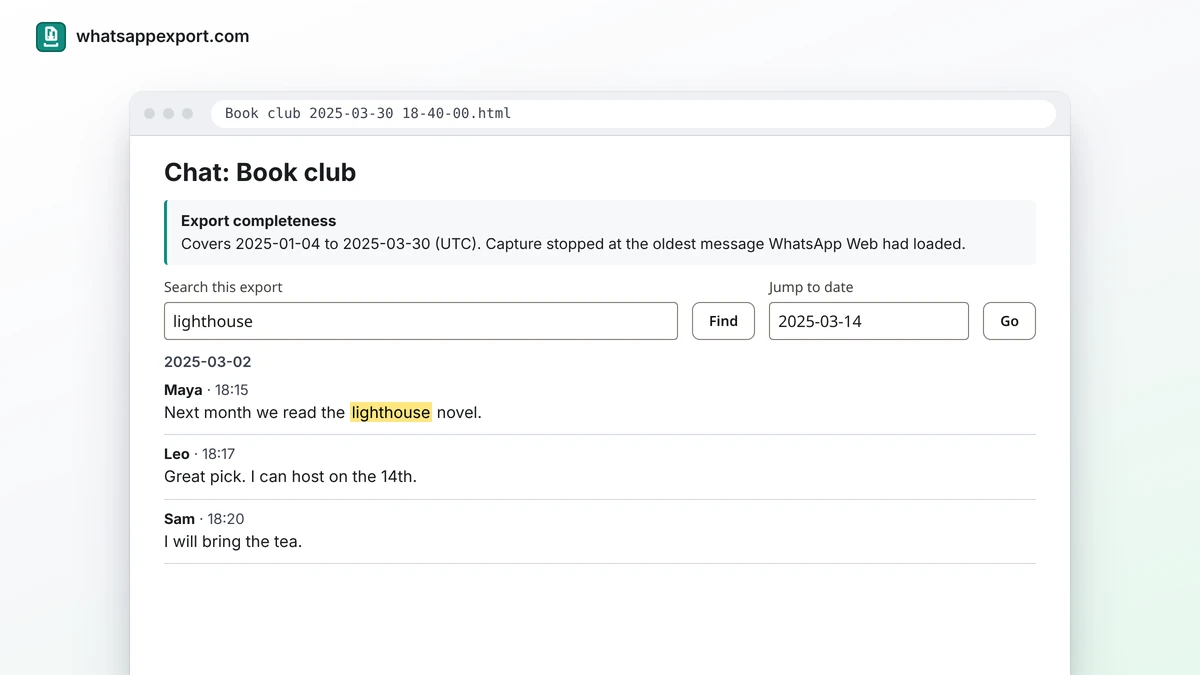
WA Suite: Chat Export & Backup saves the WhatsApp Web chat you open as an offline HTML page that opens in any browser, with a search box and a jump-to-date control, and loads nothing from the internet. It is one of four formats you can tick, with TXT, JSON, and CSV, on every plan.
What is an offline HTML export?
It's one .html file that holds the chat: the messages grouped by day, each with its time, sender, text, quoted reply, and reactions. It starts with the completeness report: the dates covered, where the export stopped, and counts of what was not available. The page loads nothing from the internet, so it opens the same way with or without a connection.
How to export a chat to HTML
- Open web.whatsapp.com in Chrome, Edge, or Firefox and open the chat.
- Click the extension. Its popup (version 4.1.0 or later) opens on the Chats tab.
- Under File format, tick HTML page (version 4.2.0 or later). Choose dates or a sender under Filters if you want only part of the chat, then press Start.
- When the export is saved, open the
.htmlfile. With other formats or media ticked too, it is inside the saved ZIP. - Double-click the
.htmlfile. It opens in your browser.
The PC guide has more on each step.
Add to Chrome, it's free, Add to Edge, or Add to Firefox and save a chat as an offline HTML page. See what All tools adds.
How to search and jump to a date in the page
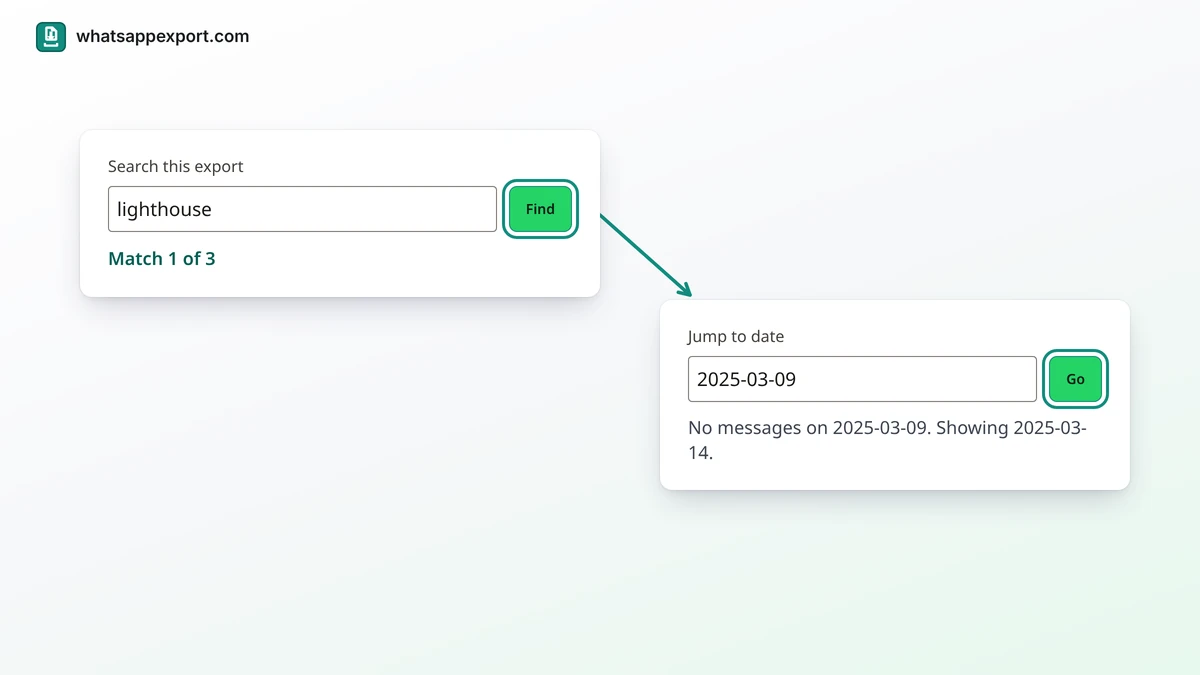
- Search this export: type a word and choose Find. The page highlights each match and shows "Match n of m". Choose Find again to go to the next match.
- Jump to date: pick a date and choose Go. If that day has no messages, the page shows the next day that does.
When you print the page, the search and date controls are left out.
Does the HTML page show photos?
On All tools, the export saves the photos and files the browser session can reach, and the HTML page shows saved photos and stickers inline and links each saved file. Every media item that was not saved shows its reason, such as "needs All tools" or "not loaded". On the free plan no media is saved, so the page lists each item as needing All tools. The media guide has the details.
HTML vs TXT vs PDF: which to keep?
- HTML is the easiest to read and search on a computer, and it opens offline.
- TXT is one line per message, for reading or printing in any text editor.
- PDF (All tools) has page numbers, volumes for long chats, and the JSON file's SHA-256 hash on every page. See the PDF guide.
Tick as many of HTML, TXT, JSON, and CSV as you want; one export saves them all. The formats page compares them.
Common questions
Do I need internet to open the HTML file?
No. The page loads nothing from the internet. Saved photos load from the export's own media folder, so keep that folder next to the .html file.
Can I share the HTML file?
It's a normal file you can copy like any other. It holds other people's messages, so export and share only chats you're allowed to keep.
Does the HTML page look like WhatsApp?
No. It uses the extension's own layout. It doesn't copy WhatsApp's interface.