How to export a WhatsApp chat with media
On All tools, WA Suite: Chat Export & Backup saves the photos, files and voice messages your WhatsApp Web session can reach alongside the chat, voice messages as audio files, and lists every item it couldn't save with a reason. On the free plan, exports hold the messages without media, and the report lists each media item as needing All tools.
Can you export a WhatsApp chat with media from WhatsApp Web?
Yes, with All tools ($8.99 a month, $49.99 a year, or $74.99 lifetime). The export saves the media the browser session can reach into a media folder next to the chat files. What the session can't reach is listed in the missing-media report instead, so you know what is not in the export. See pricing for the plans.
How to save media with an export
- Open the chat in WhatsApp Web and click the extension. Its popup (version 4.1.0 or later) opens on the Chats tab.
- If you want media that WhatsApp Web has not loaded yet, tick the download-click box described below.
- Press Start and keep the WhatsApp Web tab open. Closing the popup does not stop the export.
- When the export is saved, the report at the top of each file says how many media files were saved and how many are missing.
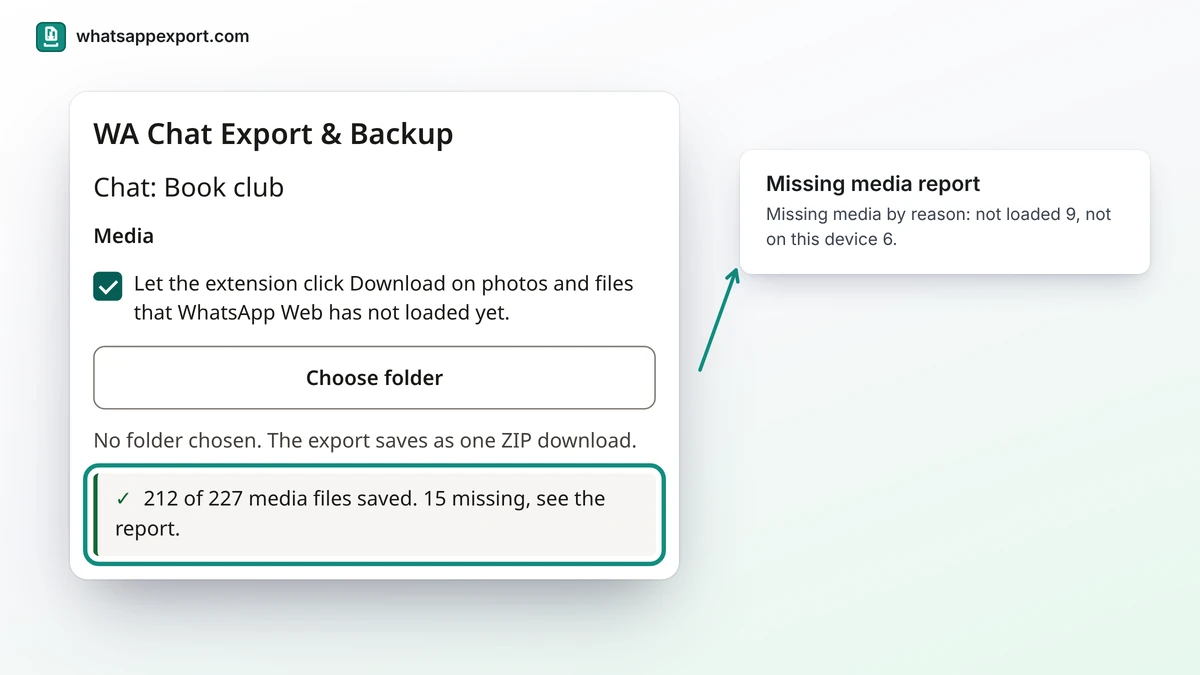
The photos and files go into the export's ZIP, under media/, with the formats you ticked. For the full export steps, see how to export a WhatsApp chat on a PC.
Saving photos and files is in All tools: Add to Chrome, Add to Edge, or Add to Firefox.
Voice messages
On All tools, a voice message WhatsApp Web has loaded is saved as an audio file (.ogg) in media/, next to the photos and files. A voice message the session hasn't loaded is listed in the missing-media report as not loaded, so not every voice message is guaranteed to be in the export. The free plan saves no media, including voice messages; its report lists each one as needing All tools.
The optional download-click checkbox
A separate checkbox, off by default, lets the extension click a photo's or file's own download control during one export, so WhatsApp Web loads that file. It clicks only each item's own download control, during that export, with a pause like a scroll. Without it, only media that is already loaded is saved.
The missing-media report and reasons
Each export with media writes media/report.txt: the counts, then one line per missing item. The chat files mark the same items. Each missing item has one reason:
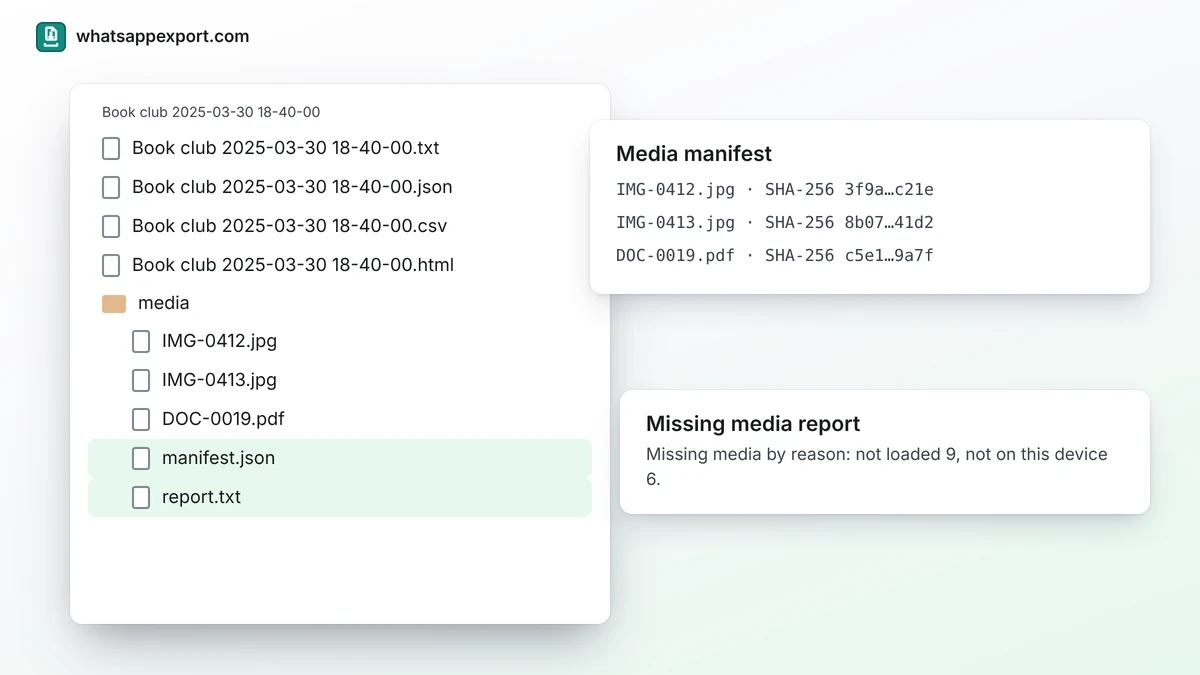
- needs All tools: the free plan doesn't save media.
- not loaded: WhatsApp Web had not loaded the file.
- not on this device: the file is not on this device.
- download not approved: the download-click box was off.
- expired or save failed: the file expired, or saving it failed.
The SHA-256 media manifest
On All tools, the export also writes media/manifest.json: one row per media message, saved or missing, with each saved file's path and SHA-256 hash. A file that appears more than once in the chat is stored once. The All tools PDF can save a .sha256 file with the same hashes for sha256sum -c.
Common questions
Is saving media free?
No. Saving media, the media manifest, and the PDF are part of All tools. The free plan exports up to 30 messages a day to TXT, JSON, CSV, or HTML, without media.
Why are some media items missing?
The export saves only what the browser session can reach. Each missing item is listed in the report with its reason, such as not loaded or not on this device.
Does the extension click anything in WhatsApp Web?
It may click WhatsApp Web's prompt to get older messages from your phone. It clicks a photo's or file's own download control only if you tick the box for that export. It never sends messages and never types into WhatsApp Web.